Faucet v0.1.14 is out. It is mostly one big change: a rebuilt admin UI. You can now connect a database by typing the same host, port, username and password you would give any database client, check that it works with Test connection before anything is saved, and copy a ready-made MCP config for the AI tool you use. Get it from GitHub Releases, npm, Homebrew or Docker Hub (upgrade commands are at the end).
If you are new here: Faucet is a free, MIT-licensed single binary that turns PostgreSQL, MySQL, MariaDB, SQL Server, Oracle, SQLite or Snowflake into a REST API and an MCP server, with API keys and roles built in.
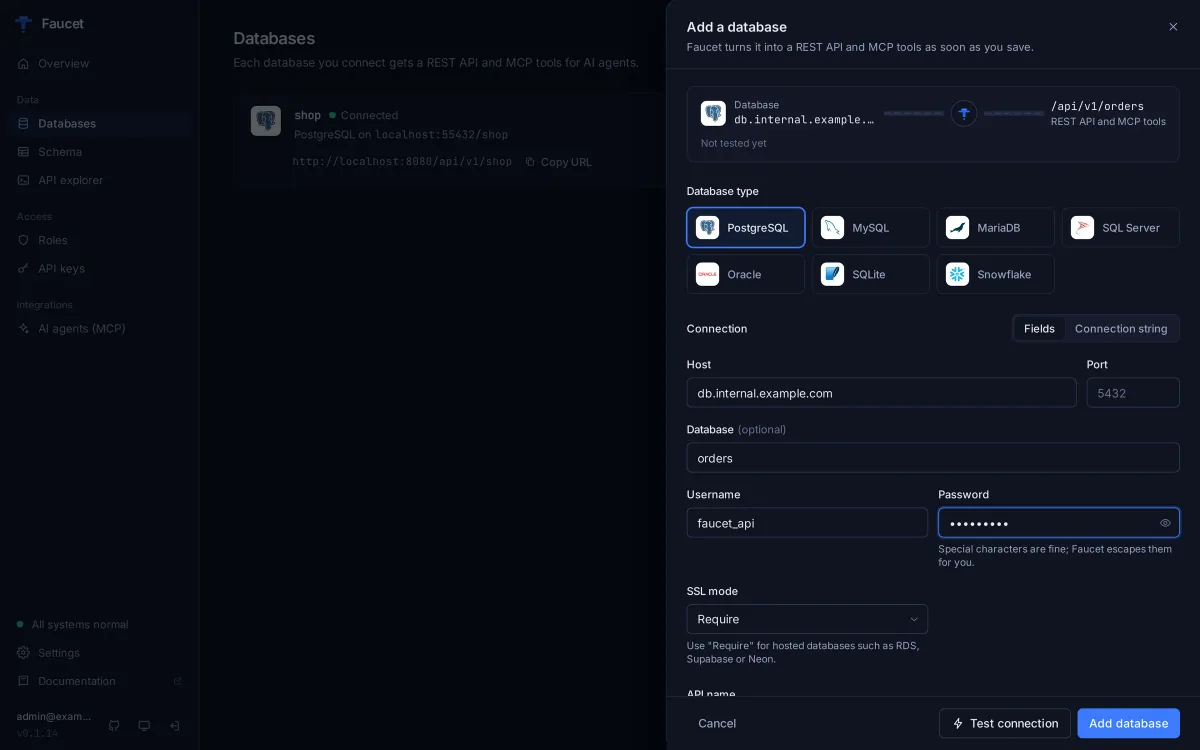
Connect a database without writing a connection string
Before v0.1.14, adding a database meant writing a DSN, and every driver wants a different one: MySQL wants tcp(host:port), SQL Server wants sqlserver://...?database=, and an @ in a password has to be percent-encoded. That was the most common place for a first run to go wrong.
Now the Add database panel asks for fields:
| Database | Fields |
|---|---|
| PostgreSQL | Host, port (default 5432), database, username, password, SSL mode |
| MySQL, MariaDB | Host, port (3306), database, username, password, TLS |
| SQL Server | Host, port (1433), database, username, password, encryption, Trust server certificate |
| Oracle | Host, port (1521), service name, username, password, TLS |
| Snowflake | Account identifier, username, password or key pair, database, schema, warehouse, role |
| SQLite | File path |
Faucet builds and escapes the connection string for you, so passwords with @, #, / or % just work. Already have a DSN? Switch to Connection string and paste it.
Test before you save
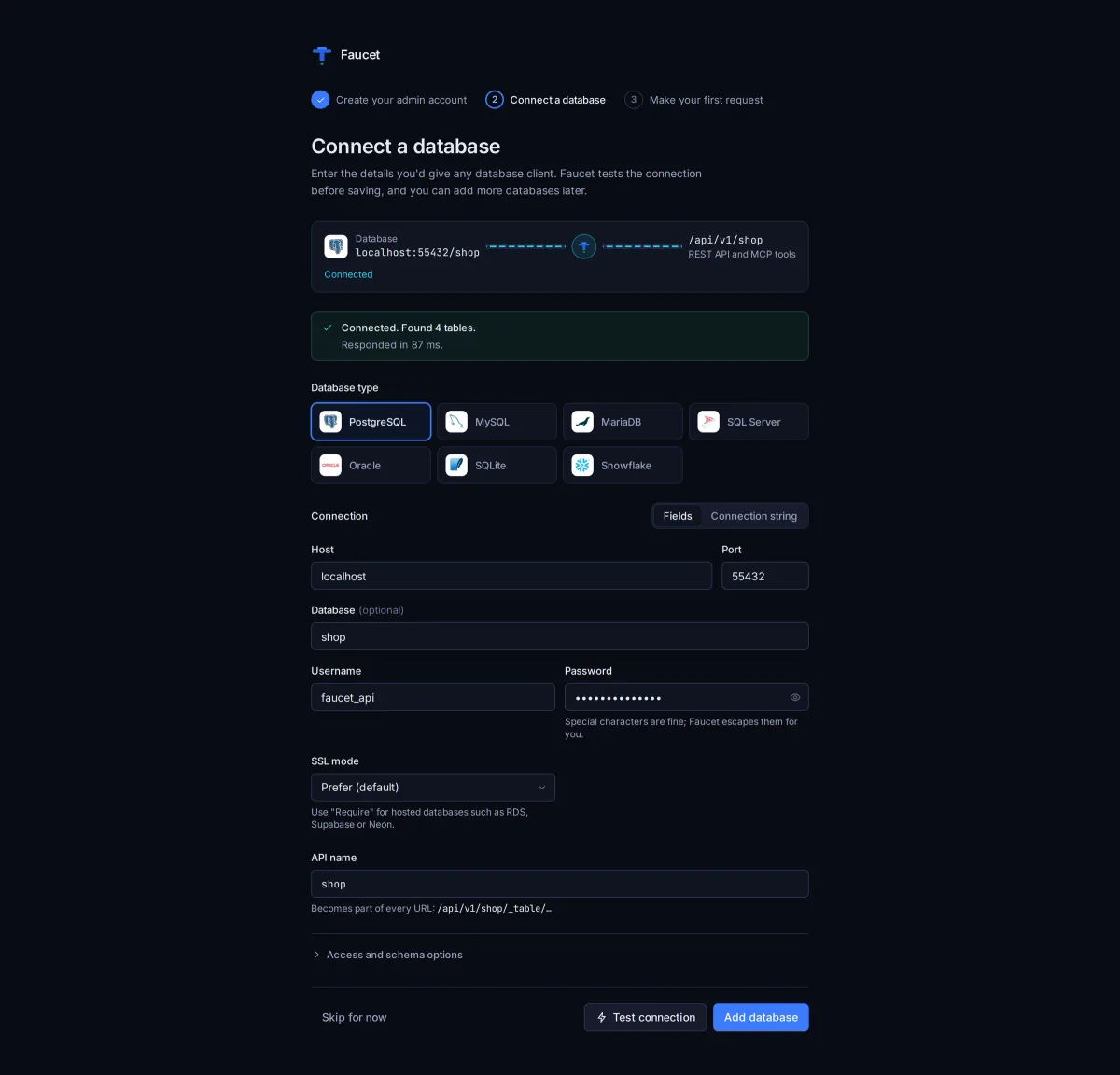
Test connection opens a temporary connection, pings the database, lists its tables and closes the connection. Nothing is saved. On success it tells you how many tables it found; on failure it shows the database’s own error with a plain-language hint for the usual suspects: connection refused, unknown host, timeouts, wrong credentials, a missing database or Oracle service name, TLS mismatches and SQLite files that can’t be opened.
Add database runs the test for you if you haven’t. If the database isn’t reachable yet but will be, Save anyway stores it.
The same check is available to scripts as a new endpoint, POST /api/v1/system/connection/test. It takes the same body as creating a service (driver plus connection fields or a dsn), needs an admin session, and saves nothing:
# ADMIN_TOKEN is an admin session token from POST /api/v1/system/admin/session
curl -X POST http://localhost:8080/api/v1/system/connection/test \
  -H "Authorization: Bearer $ADMIN_TOKEN" -H "Content-Type: application/json" \
  -d '{"driver":"postgres","connection":{"host":"localhost","username":"app","password":"...","database":"shop"}}'
A success returns {"success": true, "table_count": 4, "tables": [...], "latency_ms": 38}. The full shape is in the API reference.
The CLI got the same treatment. faucet db add takes the connection as separate flags, and --password-prompt keeps the password out of your shell history:
faucet db add --name shop --driver postgres \
  --host db.internal --user app --password-prompt --database shop
faucet db add --name local --driver sqlite --path ./shop.db
--dsn still works exactly as before.
Connect an AI agent from the AI agents page
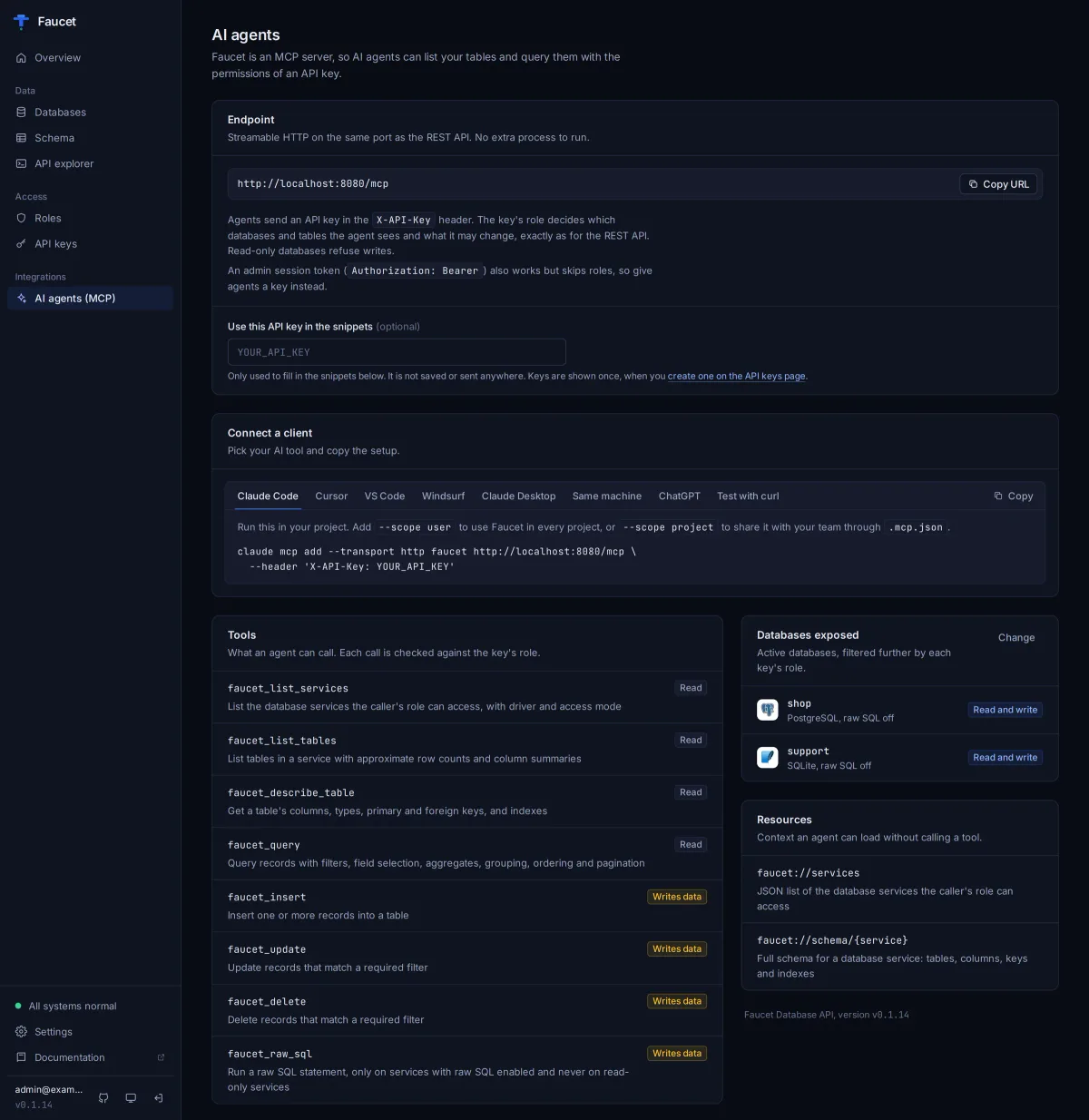
Faucet’s MCP server lives at /mcp on the same port as the REST API. Agents send an API key in the X-API-Key header, and the key’s role decides which databases and tables they see and what they may change.
The new AI agents page turns that into copy and paste. Paste an API key once and it fills in a working config for each client, with the location of the config file:
- Claude Code:
claude mcp add --transport http faucet http://localhost:8080/mcp --header 'X-API-Key: ...' - Cursor:
~/.cursor/mcp.jsonor.cursor/mcp.json - VS Code:
.vscode/mcp.json, used from GitHub Copilot Chat in agent mode - Windsurf:
~/.codeium/windsurf/mcp_config.json - Claude Desktop: through the
mcp-remotebridge, because Claude Desktop’s config file only launches local commands - Same machine:
faucet mcpover stdio. This runs with full admin rights and ignores roles, so keep it for your own machine. - ChatGPT: see below
- Test with curl: an MCP handshake to check the URL and key
It also lists every tool an agent can call, marked Read or Writes data, and which databases are exposed, with their read-only and raw SQL settings.
A note on ChatGPT
ChatGPT’s connectors sign in with OAuth, and Faucet doesn’t offer OAuth yet, so you can’t add Faucet as a ChatGPT connector today. Two routes do work: a Custom GPT Action that imports https://your-host/openapi.json and authenticates with an API key in the X-API-Key header, or the OpenAI Responses API, which accepts Faucet as an MCP tool. Either way OpenAI calls Faucet from its own servers, so Faucet has to be reachable from the internet. Use a read-only key.
The rest of the admin UI
Every page was redesigned. The highlights:
- First-run setup walks you through creating an admin, connecting a database and making a first request.
- Overview has a getting-started checklist, the REST, MCP and OpenAPI URLs, and a ready-to-run request in curl, JavaScript and Python.
- Schema shows columns, keys and clickable foreign keys, previews table data, and shows schema drift for locked tables.
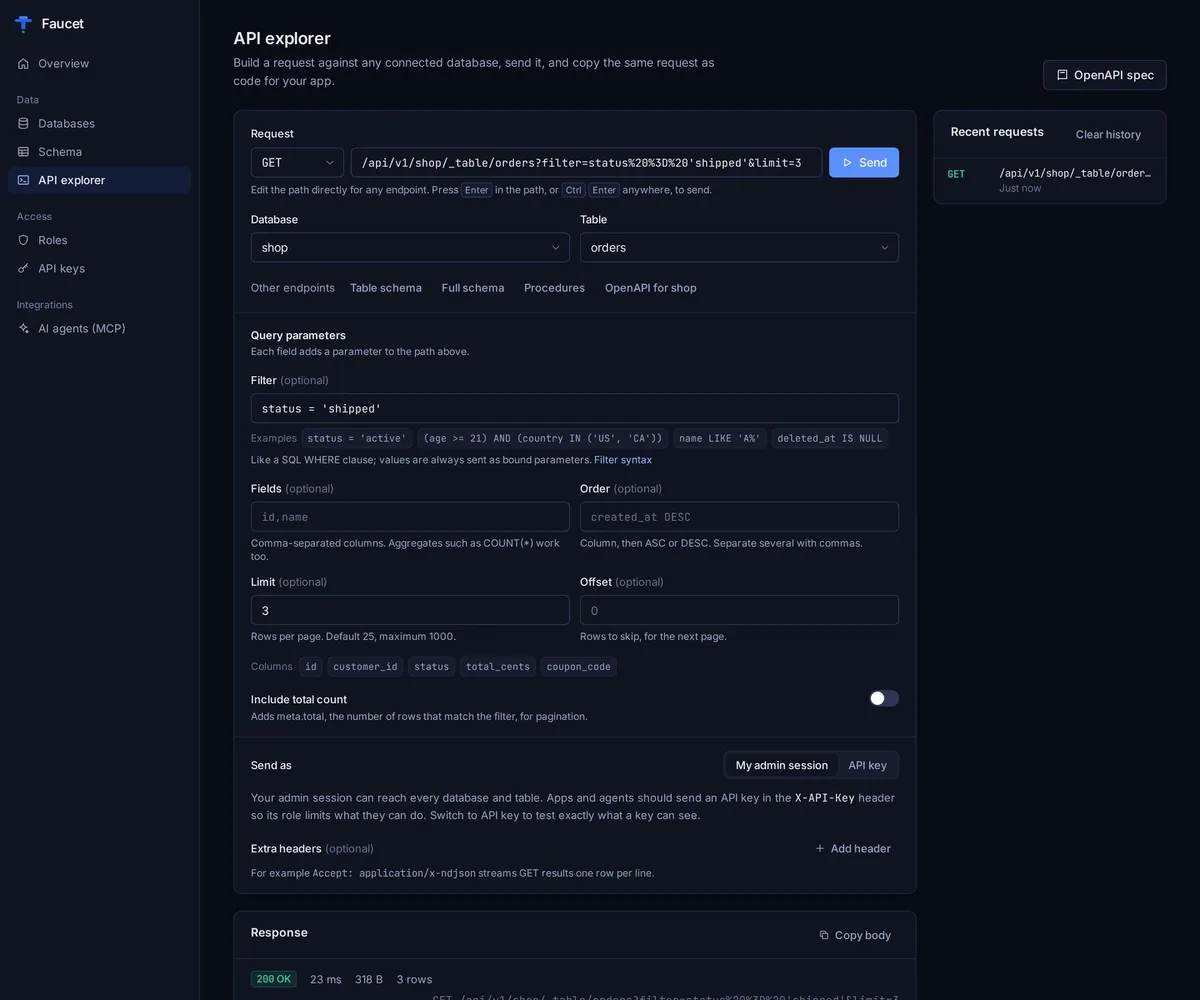
- API explorer builds and sends requests as your admin session or as a specific API key, then copies them as code.
- Roles start from one-click presets and describe what a role allows in plain words.
- API keys can expire, and a new key is shown once with snippets that already contain it.
- A light theme, and layouts that work on a phone.
The release also fixes a blank page at /admin, GET /mcp returning HTML to MCP clients, double-encoded DSN passwords, and unescaped HTML in the JSON viewer.
The Admin UI guide walks through every page with screenshots.
Upgrade
Faucet keeps its config (databases, roles, keys) in its data directory, so upgrading keeps your setup. faucet serve runs in the background, so stop the old version first with faucet stop.
# npm: npx runs the latest release
npx @faucetdb/faucet@latest serve

# Homebrew
brew update && brew upgrade faucetdb/tap/faucet

# Docker (config persists in the faucet-data volume)
docker pull faucetdb/faucet:0.1.14
docker run -p 8080:8080 -v faucet-data:/data faucetdb/faucet:0.1.14

# Go
go install github.com/faucetdb/faucet/cmd/[email protected]
Prebuilt binaries for Linux, macOS and Windows (amd64 and arm64) are on the v0.1.14 release page. Found a bug or a confusing screen? Open an issue.